Install SalesSync in HubSpot
Open the install link your SalesSync contact sends you after the demo — salessync.contuit.com/install/ — or the install link on the Marketplace listing. It takes you straight to HubSpot.
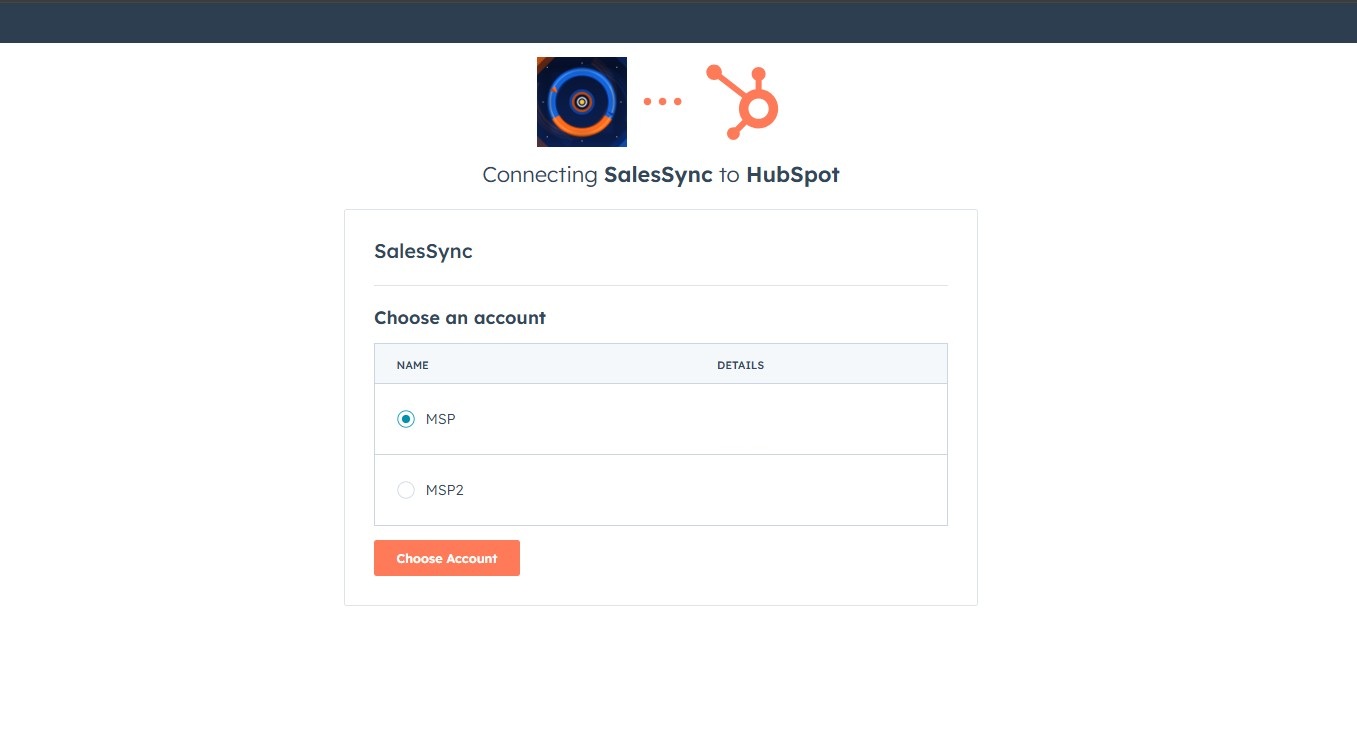
- Choose the account. If you belong to more than one HubSpot account, HubSpot asks which one to connect. Pick the portal your sales team works in — SalesSync syncs one portal per tenant.
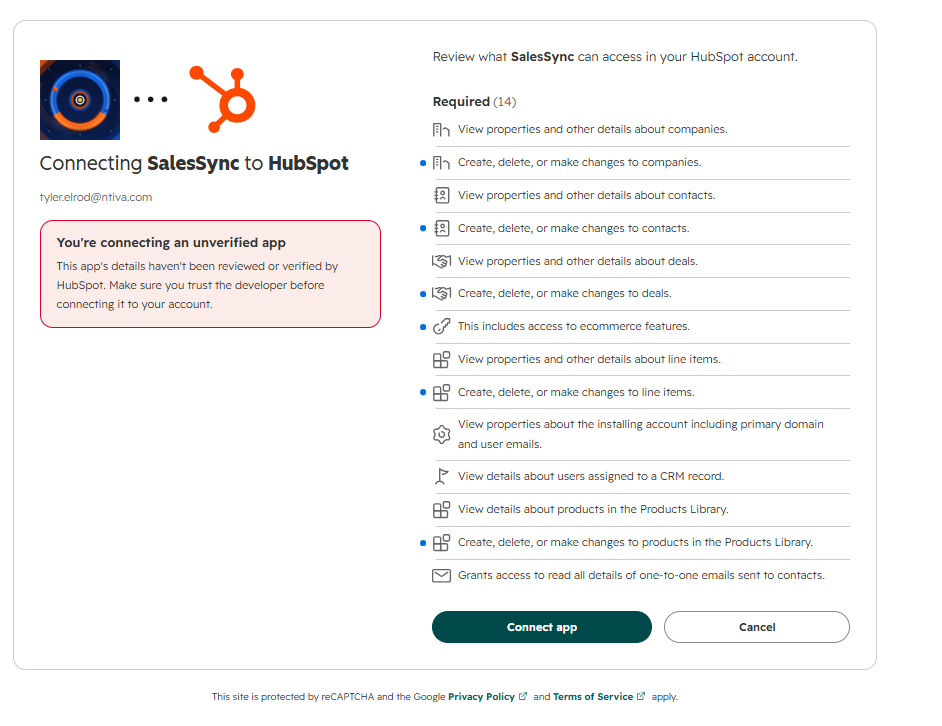
- Review the permissions and click Connect app. What each one is for is listed below. If HubSpot shows an extra note asking you to acknowledge the app before continuing, follow the prompt — it appears while a Marketplace listing is still under review.
- You are sent back to us. HubSpot returns you to
salessync.contuit.com/connected/, which shows your bind code — step 2.
What SalesSync asks HubSpot for, and why
Companies, contacts, deals — read and write
These are the records SalesSync mirrors with ConnectWise Manage companies, contacts and opportunities, in both directions.
Products and line items — read and write
A deal's line items become the ConnectWise opportunity's products, and product catalog changes flow back. HubSpot groups these under its ecommerce permission.
Owners — read
To map the HubSpot owner of a company or deal to the matching ConnectWise member, so records land with the right person.
Sales email — read
To sync one-to-one email activity onto the ConnectWise record, where activity sync is turned on for your tenant.
Basic account information
Your portal id and domain — how SalesSync tells your portal apart from every other one. Standard for any installed app.
SalesSync never asks for permission to read or send email on your behalf beyond the one-to-one sales emails already logged to your CRM records, and never for billing, marketing or settings scopes.
Hand over your bind code
After you connect, HubSpot sends you to a page on salessync.contuit.com showing a twelve-character bind code. The code is how we tie your HubSpot install to your own SalesSync tenant — nothing else about your portal is needed from you, and the code is useless to anyone who is not already your onboarding contact.
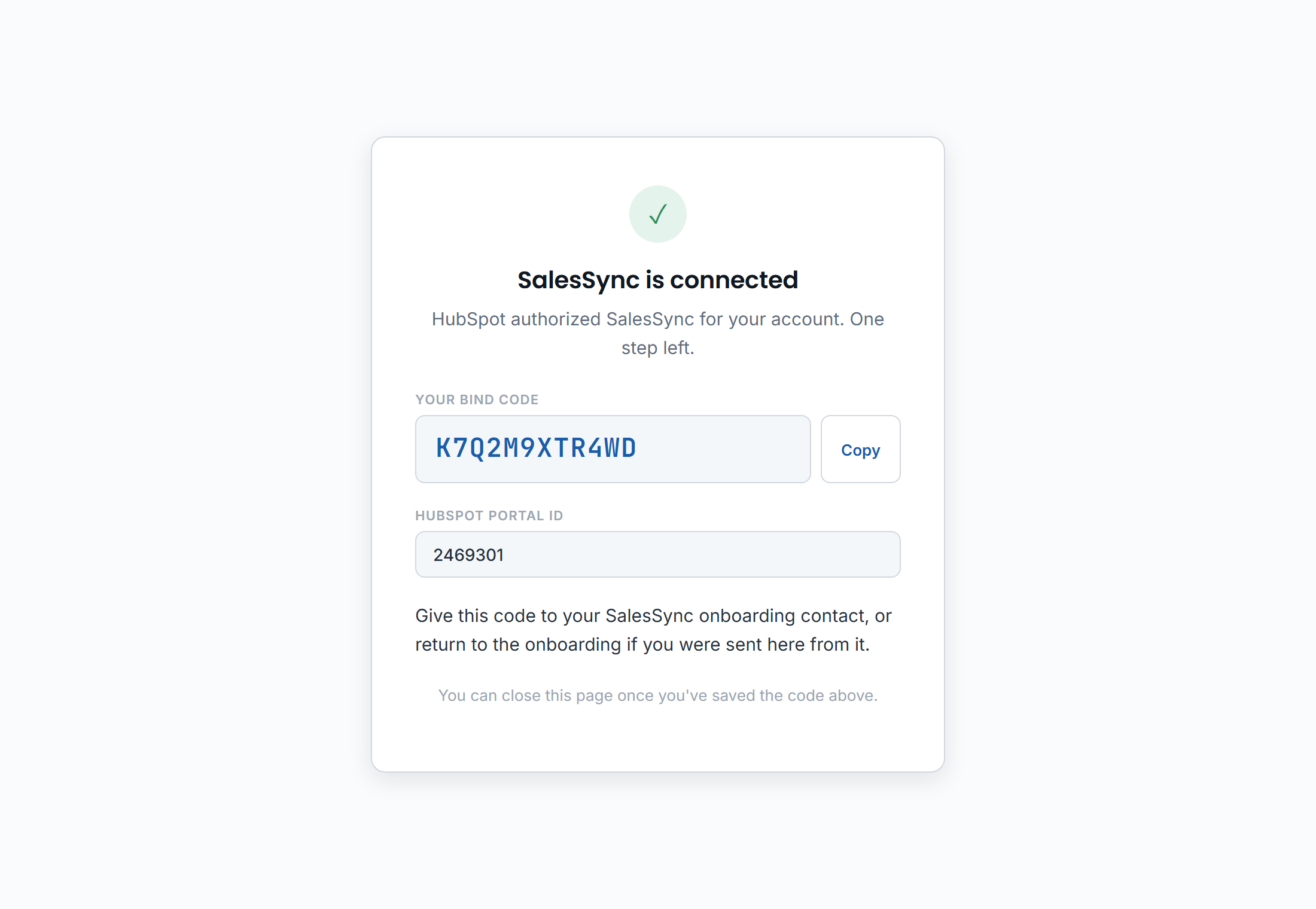
- Copy the code with the button, or read it out — it uses only letters and digits that cannot be confused with one another.
- Give it to your SalesSync onboarding contact — by reply to the email that sent you the install link, or at msp@contuit.com. If you were sent here from a live onboarding session, the page also offers a link straight back into it.
- Close the page. Nothing else is needed from you until your contact reaches out about ConnectWise.
Installed but never sent the code? The install is harmless on its own — SalesSync cannot read or write anything in your portal until the install is bound to a tenant. Reopen salessync.contuit.com/install/ to run the connection again and get a fresh code.
What happens next
Your onboarding contact works through these with you, in the SalesSync tenant manager, usually over one or two sessions. You will be asked for exactly one thing: a ConnectWise Manage API member. Everything else is done with you watching, on your data.
- Your tenant is created and your install bound to it. Every SalesSync customer gets a dedicated tenant on the Contuit automation platform — nothing is pooled. Your HubSpot access grant is stored encrypted at rest, in that tenant only.
- ConnectWise Manage is connected. You create an API member in ConnectWise with a security role your contact walks you through (screenshots on screen at each step), and enter its keys yourself, into your own tenant — never by email. SalesSync validates the connection and registers the ConnectWise callbacks that let changes made there flow to HubSpot.
- SalesSync's properties are created in your portal. A small set of
ss_-prefixed properties appears on companies, contacts and deals — includingss_sync_to_connectwise, the switch that admits a company to the sync. These are how you will later see what synced and to what. - Your mappings are decided with you. Deal stages to opportunity stages, billing cycles, the default pipeline, which ConnectWise company statuses and types are eligible, and which sync directions are on. Every choice is written to your tenant as it is made.
- An alpha sync runs on companies you pick. One to five HubSpot companies and one to five ConnectWise companies, chosen with you, go through the whole sync while everything else stays untouched — a real test on your production data with a fence around it. Alpha mode cannot be turned off until an alpha run has completed.
- The full sync, then go-live. Starting the full sync is what ends alpha mode. It runs with a live completion estimate; when it finishes you get a handover that says what was connected, what was mapped and who to call.
How to see it working
On a HubSpot company
Open a company that was in your alpha set. Its ss_ properties are filled — the matched ConnectWise company and the last sync — and ss_sync_to_connectwise is on. A company without that switch on is not admitted to the sync; that is deliberate, not a fault.
In ConnectWise Manage
The same company exists with the mapped fields filled, and its contacts and open opportunities alongside it. Edit a mapped field on either side and the other follows on the next run.
Deals and line items
A deal reaching the configured pipeline stage becomes a ConnectWise opportunity; its line items become the opportunity's products, with price, quantity and billing carried across.
Watch the sequence
The animated demo plays the exact order SalesSync works in — company match, contact match, opportunity, products, activities — for both directions.
If something you expected to sync did not, the support page lists the three things to check first, and what to include when you write to us.
Disconnect or uninstall
You can stop SalesSync at any time from inside HubSpot, without asking us: Settings → Integrations → Connected Apps → SalesSync → Uninstall. HubSpot revokes our access the moment you confirm.

What stops
Synchronization for your portal, immediately. Webhook deliveries from HubSpot end with the revoked access.
What stays
Everything already written stays where it is — nothing is deleted from HubSpot or from ConnectWise by an uninstall. The ss_ properties remain on your records as ordinary properties.
Coming back
Reinstall from the same link and send the new bind code; your tenant and mappings are still there.
Deleting what we hold
To have the data we keep for your account deleted, email msp@contuit.com. The privacy policy says what that is and how long we keep it otherwise.
Need a hand?
Your onboarding contact is the fastest route during setup. Otherwise: msp@contuit.com, +1 844 257 2537, Monday to Friday, 8am to 5pm US Central — and the support page for what to include so we can answer in one go.